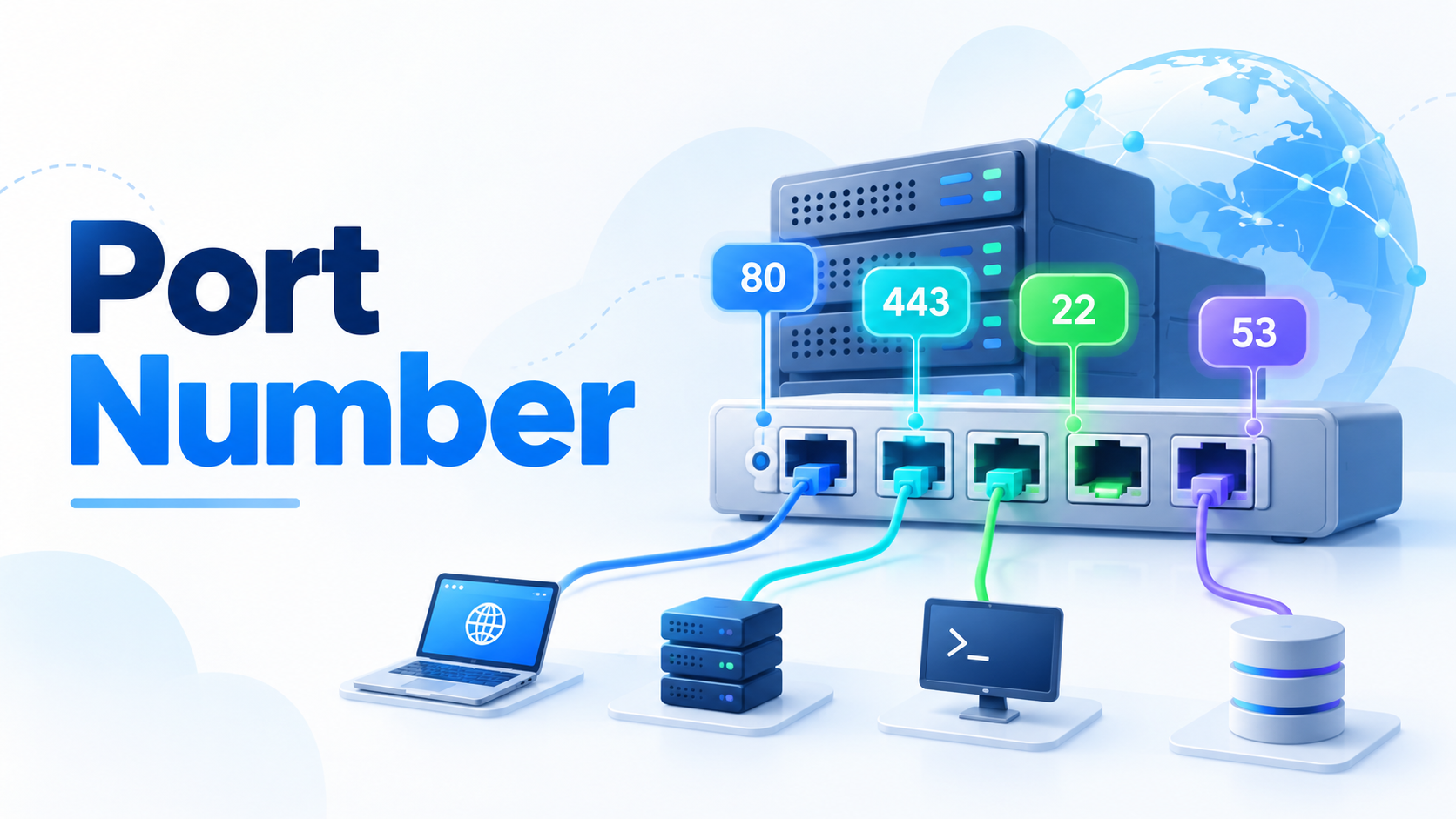
A port number is a numerical identifier that helps computers direct network traffic to the correct application or service. When your computer connects to a website, sends an email, performs a DNS lookup, or accesses a remote server, port numbers help make sure the data reaches the right destination.
An IP address identifies a device on a network. A port number identifies a specific service or application running on that device.
For example, a web server may use port 443 for HTTPS traffic, while a DNS server commonly uses port 53 for DNS queries.
Understanding port numbers makes it much easier to understand how network connections work and how to troubleshoot connectivity problems.
What Is a Port Number?
A port number is a number between 0 and 65535 that identifies a network service or application.
Think of an IP address as the address of an apartment building and a port number as the number of a specific apartment.
The IP address gets the network traffic to the correct device. The port number tells the operating system which application should receive that traffic.
A network connection might look like this:
192.0.2.10:443
Here:
- 192.0.2.10 is the IP address.
- 443 is the port number.
Port 443 normally indicates HTTPS traffic.
This combination of an IP address and port number allows multiple network services to operate on the same server.
Why Do We Need Port Numbers?
A computer can run many network applications at the same time.
For example, one server might host:
- A website
- A DNS service
- An email server
- An SSH service
- A database
If network traffic only contained an IP address, the server would know that the data had reached the correct machine but not which application should receive it.
Port numbers solve this problem.
When traffic arrives, the operating system looks at the destination port and sends the data to the application listening on that port.
This allows one IP address to support many different services.
How Do Port Numbers Work?
Imagine that you open a secure website.
Your browser first needs the server’s IP address. It can obtain that address through the Domain Name System. You can learn more about this process in our guide to how a DNS resolver works.
After finding the server’s IP address, your browser connects to the appropriate service.
For HTTPS, that will usually be port 443.
A simplified connection looks like this:
Your computer → Server IP address → Port 443 → Web server
The server listens for incoming connections on that port and responds when a client connects.
The same server could also listen on other ports for completely different services.
What Are TCP and UDP Ports?
Port numbers are commonly associated with two transport protocols: TCP and UDP.
TCP Ports
TCP, or Transmission Control Protocol, creates a connection between two devices and focuses on reliable delivery.
TCP checks whether data arrives correctly and in the proper order.
Services that commonly use TCP include:
- HTTPS
- SSH
- Many web applications
UDP Ports
UDP, or User Datagram Protocol, sends data without establishing the same type of connection first.
It has less overhead than TCP, but it does not provide the same built-in delivery guarantees.
DNS commonly uses UDP for standard queries, although DNS can also use TCP.
Newer technologies may use UDP in different ways. For example, DNS over QUIC uses QUIC over UDP to provide encrypted DNS communication.
A TCP port and a UDP port can have the same numerical value because TCP and UDP maintain separate port spaces.
Common Port Numbers
You will encounter some port numbers much more often than others.
| Port | Common Service | Typical Use |
| 20/21 | FTP | File transfer |
| 22 | SSH | Secure remote access |
| 25 | SMTP | Sending email between mail servers |
| 53 | DNS | Domain name resolution |
| 80 | HTTP | Unencrypted web traffic |
| 110 | POP3 | Retrieving email |
| 143 | IMAP | Accessing email |
| 443 | HTTPS | Encrypted web traffic |
| 465 | Message submission | Email submission over TLS |
| 993 | IMAPS | Encrypted IMAP email access |
These are standard associations, but applications can sometimes be configured to use different ports.
For example, a development web server could run on port 8080 rather than port 80.
What Are Well-Known, Registered, and Dynamic Ports?
The full port number range runs from 0 to 65535, but it is divided into three main groups.
Well-Known Ports: 0–1023
These are also called System Ports.
They include many widely used Internet services.
Examples include:
- Port 22 for SSH
- Port 53 for DNS
- Port 80 for HTTP
- Port 443 for HTTPS
Because these numbers are associated with common services, administrators can often identify the expected type of traffic simply by looking at the port.
Registered Ports: 1024–49151
These are also known as User Ports.
Applications and organizations can register ports in this range for particular services.
You will often encounter these ports when working with databases, applications, server software, and specialized network services.
Dynamic or Private Ports: 49152–65535
These ports are commonly called dynamic, private, or ephemeral ports.
Operating systems often use them temporarily when a client starts a network connection.
For example, your browser may connect from a temporary high-numbered port on your computer to port 443 on a web server.
Once the connection ends, that temporary port can later be reused.
What Is an Open Port?
An open port usually means that an application is listening for incoming network connections on that port.
For example, if an SSH server is running, the system may listen on TCP port 22.
An open port is not automatically a security problem. Servers need open ports to provide network services.
However, unnecessary or poorly secured services can increase security risks. Administrators therefore monitor listening ports and close services that they do not need.
How Can You Check Port Numbers?
Operating systems provide several tools for inspecting network connections and listening ports.
On Linux, one of the most useful commands is:
ss -tuln
It shows TCP and UDP listening sockets using numerical addresses and port numbers.
Read our SS command guide for beginners for more examples.
Another widely used tool is Netstat. For example:
netstat -n
Displays network addresses and port numbers numerically.
You can learn how to inspect connections and listening ports in our Netstat command guide.
These tools can help you answer questions such as:
- Which ports are listening?
- Which application is using a port?
- Is a server accepting connections?
- Which remote address is a device connected to?
What Port Does DNS Use?
DNS traditionally uses port 53.
Standard DNS queries commonly use UDP port 53, while TCP port 53 can also be used when required.
Modern encrypted DNS protocols may use other ports.
For example, DNS over HTTPS commonly operates over HTTPS on port 443, while protocols such as DNS over TLS and DNS over QUIC commonly use port 853.
The port number therefore depends on how the DNS traffic is being transported.
Port Number vs IP Address
IP addresses and port numbers work together, but they identify different things.
An IP address identifies a network interface or destination device, while a port number identifies a service or application associated with that device.
A simple way to remember the difference is:
IP address = where the traffic goes
Port number = which service receives it
Both pieces of information are essential for many network connections.
Final Thoughts
Port numbers are a fundamental part of computer networking.
They allow a single device to run many network services simultaneously by directing incoming and outgoing traffic to the correct application.
You do not need to memorize all 65,536 possible numbers. Start with common ports such as 22, 53, 80, and 443, and learn how tools such as ss and Netstat display them.
Once you understand the relationship between an IP address, a port number, TCP, and UDP, many networking concepts become much easier to follow.

Hi, I’m Bella, a technology enthusiast who enjoys making complex tech topics clear, practical, and easy to understand. Outside of writing, I love trail running, biking, traveling, and photography.