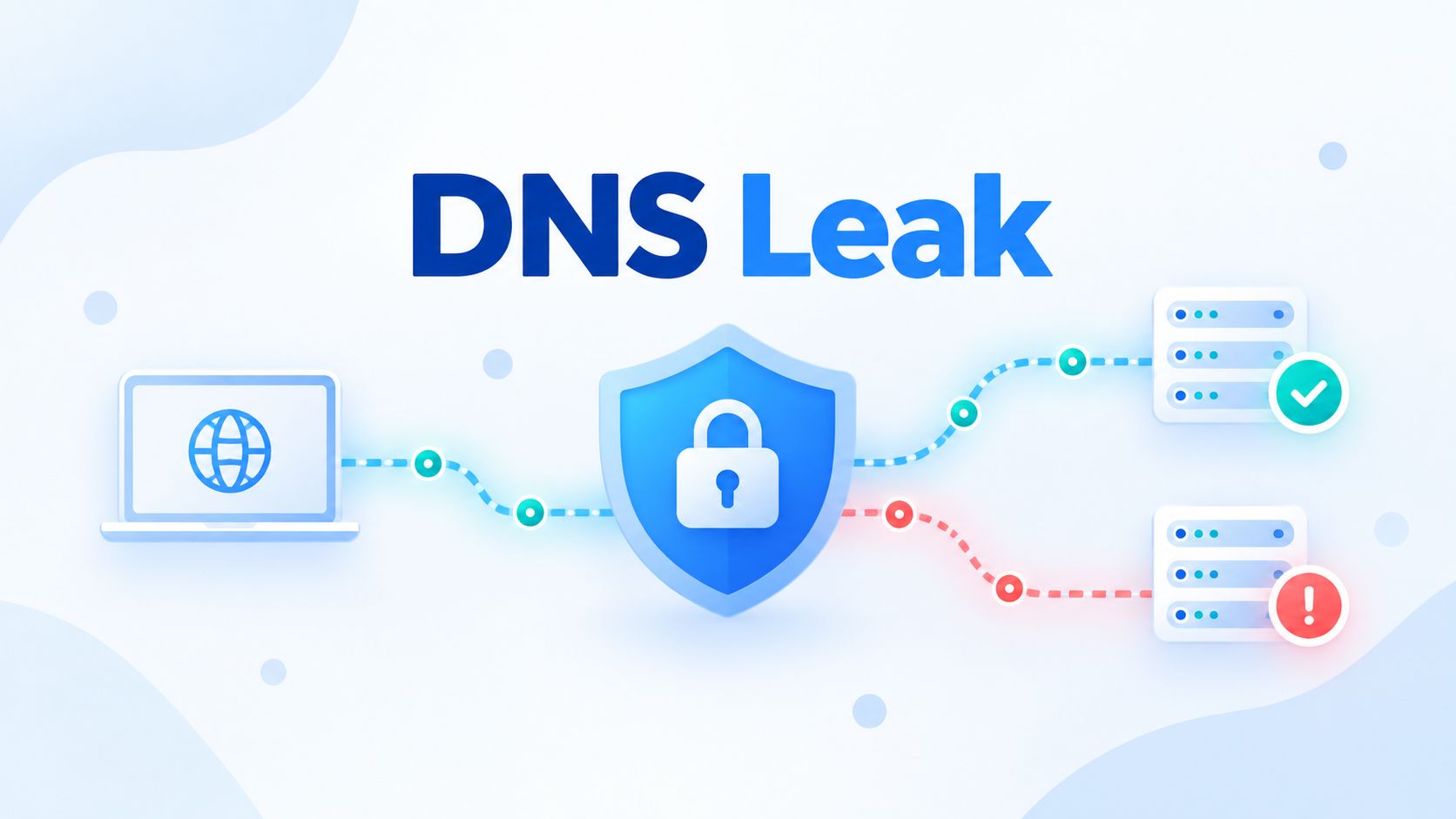
A VPN can hide your public IP address and send your Internet traffic through an encrypted tunnel. But there is one small piece of the connection that can quietly take a different route: DNS. When that happens, your website traffic may travel through the VPN while your DNS requests still go somewhere else. This is known as a DNS leak, and it can reveal more about your browsing activity than you probably intended.
What Is a DNS Leak?
A DNS leak happens when DNS queries are sent outside the network path you expect them to use.
The term is most commonly associated with VPNs. When a VPN is working as intended, DNS requests are usually routed through the VPN tunnel or sent to a resolver chosen by the VPN provider.
A normal VPN connection may look like this:
Device → VPN tunnel → DNS resolver
With a DNS leak, the path can look more like:
Device → ISP or local DNS resolver
while the rest of your Internet traffic still uses:
Device → VPN tunnel → Internet
That difference matters because DNS is responsible for translating domain names such as example.com into IP addresses.
If those requests bypass the VPN, another DNS resolver may still be able to see the domain names your device is trying to reach.
What Information Can a DNS Leak Reveal?
A DNS leak does not suddenly expose everything you do online.
For example, if you visit an HTTPS website, a DNS resolver does not normally receive the complete page URL, passwords, messages, or the contents of the encrypted connection.
What it may see is still useful information, however:
- The domain names your device requests
- When those DNS requests happen
- How frequently certain domains are requested
- Your source IP address, depending on where the query originates
Imagine visiting:
A DNS resolver may know that your device requested example.com, but it would not learn the /private/account/settings part from the DNS query itself.
So a DNS leak should not be treated as “everything is exposed.” It is better understood as a privacy gap in the way your DNS traffic is being handled.
Why DNS Leaks Often Happen With VPNs
DNS and VPN software have to cooperate.
When you connect to a VPN, the application may change the DNS configuration on your computer and tell the operating system to use a particular resolver. It also needs to make sure the DNS traffic follows the correct network route.
That sounds simple until you remember that a modern computer may have Wi-Fi, Ethernet, IPv4, IPv6, browser-level encrypted DNS, virtual network adapters, and several applications all trying to be helpful at the same time.
A small configuration conflict can be enough for DNS requests to escape through another connection.
If you want a broader explanation of what a VPN actually protects and where its limitations begin, see Why Use a VPN? Benefits, Risks, and Use Cases.
How to Test for a DNS Leak
The easiest method is to use an online DNS leak test while connected to your VPN.
The basic idea is simple: the test causes your browser to perform several DNS lookups and then shows which DNS servers handled those requests.
A useful testing routine looks like this:
- Disconnect from your VPN.
- Run a DNS leak test and note the DNS servers that appear.
- Connect to your VPN.
- Run the test again.
- Compare the results.
- Repeat the test if the service offers an extended or multiple-query option.
When the VPN is connected, you would normally expect the DNS servers to match what your VPN provider says it uses.
If you still see your ISP’s DNS servers, your router’s resolver, or another unexpected resolver, further investigation is worthwhile.
There is one important detail: an unfamiliar DNS server does not automatically mean you have a DNS leak.
Some VPN providers use third-party DNS infrastructure. A resolver may therefore belong to another company while still being reached securely through the VPN.
Always compare the result with the DNS configuration your VPN is supposed to use.
If you want to inspect individual DNS records and see which servers are answering your queries, our guide on how to check DNS records for a domain covers several practical methods.
A Quick Before-and-After Test
One of the easiest ways to understand the result is to compare your connection before and after enabling the VPN.
| Test | DNS Server You See | What It May Mean |
|---|---|---|
| VPN disconnected | ISP DNS | Normal for many connections |
| VPN connected | VPN DNS | Usually expected |
| VPN connected | Same ISP DNS | Possible DNS leak |
| VPN connected | Different public resolver | Check VPN configuration |
| VPN connected | Several unexpected resolvers | Investigate further |
Do not focus only on the name of the DNS provider. The real question is whether DNS is following the route you intended.
How to Check DNS Settings on Windows
Online tests are convenient, but you can also look at the DNS configuration directly on your computer.
On Windows, open Command Prompt and run:
ipconfig /all
Look for DNS Servers under the active network adapter.
You can also try:
nslookup example.com
Near the beginning of the result, nslookup normally shows which DNS server answered the query.
For more ways to use the command, see our NSlookup command guide.
There is one catch. Applications can use their own DNS methods. A browser using encrypted DNS may not necessarily follow exactly the same resolver configuration shown by nslookup.
That is why it is useful to combine command-line checks with a browser-based DNS leak test.
How to Check DNS Settings on macOS and Linux
On macOS, you can inspect resolver information with:
scutil --dns
This provides more detail about the DNS resolvers currently configured on the system.
On many Linux distributions using systemd-resolved, try:
resolvectl status
You can also inspect:
/etc/resolv.conf
although modern Linux systems may generate or manage this file automatically.
The dig command is another useful option:
dig example.com
Dig can show the responding DNS server, query time, returned records, and other information that can help during troubleshooting. If you are new to it, our Dig Command Explained for Beginners guide covers the basics.
Keep in mind that a command-line DNS query is not always a perfect representation of what every application on the device is doing. Browsers and VPN applications can have their own DNS behavior.
What Causes a DNS Leak?
There is no single cause. In practice, DNS leaks usually come from a disagreement between network settings rather than one dramatic failure.
VPN configuration problems are an obvious example. The VPN may successfully create the encrypted tunnel but fail to replace or route the system’s DNS settings correctly.
Split tunneling can complicate things too. It allows some traffic to use the VPN while other traffic uses the normal Internet connection. That can be useful, but DNS needs to be handled carefully or queries may take an unexpected path.
IPv6 is another common source of confusion. A VPN may handle IPv4 correctly while IPv6 traffic follows a different route.
Browsers can also use DNS over HTTPS, sometimes called DoH, instead of relying completely on the operating system’s resolver. This improves DNS privacy in some situations, but it can make troubleshooting harder when the browser, operating system, and VPN all have different ideas about which resolver should be used.
Then there are simple configuration leftovers: manually entered DNS addresses, old VPN clients, forgotten network adapters, security software, or settings pushed by a work network.
DNS networking can occasionally resemble a cupboard full of charging cables. Everything has a purpose. Nobody remembers which cable belongs to what.
How to Fix a DNS Leak
Do not start changing every DNS setting you can find. First identify when the leak appears.
If DNS behaves normally without the VPN and changes unexpectedly when the VPN connects, start with the VPN configuration.
Look for settings such as:
- DNS leak protection
- Use VPN DNS
- Private DNS
- Prevent DNS outside the tunnel
- Kill switch
- IPv6 protection
The exact names depend on the VPN software.
Reconnect after changing a setting and run the DNS leak test again. The before-and-after comparison is more useful than simply assuming the switch fixed everything.
Try Another VPN Server or Protocol
Sometimes the configuration is fine but one VPN connection behaves badly.
Disconnect and try another VPN server. If your application allows you to choose between protocols, testing another protocol can also help identify whether the problem is specific to one connection method.
If every VPN server produces the same unexpected DNS results, the issue is more likely to be on the device or in the VPN client’s DNS configuration.
If only one server or connection method causes the problem, the issue may be more specific.
Check Split Tunneling
Split tunneling deserves special attention because it can create results that look strange even when the setup is partly intentional.
For example, you may configure your browser to use the VPN while another application uses the normal network. Depending on the VPN implementation, DNS requests from those applications may also follow different paths.
Temporarily disable split tunneling and test again.
If the DNS leak disappears, review which applications are allowed outside the tunnel and how the VPN handles their DNS requests.
A related concept is Split-Horizon DNS, where different users intentionally receive different DNS answers depending on where their requests come from. If you are working with corporate VPNs or private networks, our guide to how Split-Horizon DNS works is worth reading.
Check Browser Secure DNS Settings
Modern browsers may offer a feature called Secure DNS, usually based on DNS over HTTPS.
That means the browser can send encrypted DNS requests to a resolver independently of the traditional operating system configuration.
This is not automatically a DNS leak. In fact, encrypted DNS can improve privacy.
The problem appears when the browser’s DNS configuration conflicts with what you expect the VPN to do.
If a leak test gives confusing results, check whether Secure DNS is enabled and which resolver it uses. Your VPN provider may recommend leaving browser DNS settings on automatic so the VPN can manage them.
The goal is not simply to turn every DNS privacy feature off or on. The goal is to make the pieces work together.
Do Not Ignore IPv6
A classic DNS leak scenario involves IPv4 working correctly through the VPN while IPv6 does something different.
If your VPN supports IPv6, make sure that support is enabled and functioning.
If it does not support IPv6 and your tests show IPv6 DNS traffic escaping the tunnel, you have two better long-term options: use a VPN with proper IPv6 support or configure the network so IPv6 traffic cannot bypass the intended connection.
Disabling IPv6 can sometimes be useful as a temporary troubleshooting step, but it should not be the automatic solution to every DNS problem.
Flush the DNS Cache After Making Changes
Flushing the DNS cache does not magically repair a DNS leak, but it can be useful after changing network or resolver settings.
Windows users can run:
ipconfig /flushdns
This removes locally cached DNS answers.
How long those answers normally remain cached depends on their TTL, or Time to Live. Our guide to DNS TTL and why it matters explains how this part of DNS caching works.
After flushing the cache, disconnect and reconnect the VPN, reopen the browser, and test again.
The cache mainly affects stored DNS answers rather than the route DNS requests take, so think of this as a cleanup step rather than the main fix.
Does a Kill Switch Prevent DNS Leaks?
A VPN kill switch is designed to stop Internet traffic when the VPN connection drops unexpectedly.
That is useful because it prevents your device from immediately falling back to the normal Internet connection if the encrypted tunnel disappears.
However, a kill switch and DNS leak protection are not exactly the same thing.
A kill switch can reduce the chance of DNS queries escaping during a VPN disconnect, but it does not guarantee that DNS is being routed correctly while the VPN is connected.
A good VPN setup needs both reliable traffic routing and correct DNS handling.
DNS Leak vs IP Leak
These two terms are often mixed together, but they describe different problems.
A DNS leak means DNS requests are going somewhere they were not expected to go.
An IP leak means a website or service can discover an IP address you expected the VPN to hide.
The two can happen at the same time, but they do not have to.
For example, your website connection could show the VPN’s public IP address while your DNS requests still reach your ISP’s resolver. That would be a DNS leak without the main browser connection exposing your normal public IP.
This is why checking only “What is my IP?” is not enough to verify that DNS is being handled correctly.
Is DNS over HTTPS Enough to Prevent DNS Leaks?
DNS over HTTPS encrypts DNS requests between the application and the DoH resolver.
That prevents someone on the local network from easily reading those DNS queries in transit.
But it solves a slightly different problem.
A DoH request could still be going to a resolver you did not intend to use. Whether that counts as a leak depends on what you expect from your VPN or network configuration.
Think of it this way:
Encryption answers: “Can someone easily read this DNS request while it travels?”
Leak protection answers: “Is this DNS request going where I intended it to go?”
Both matter, but they are not identical.
The same idea applies to newer encrypted DNS protocols such as DNS over QUIC, which combines encrypted DNS with the QUIC transport protocol.
Is Every Unexpected DNS Resolver a Privacy Problem?
No.
Corporate networks often use several DNS resolvers intentionally. A company VPN may use private DNS for internal services while public DNS requests go through another resolver.
VPN providers can also use DNS infrastructure operated by another company. That means a DNS leak test may show a provider name you do not recognize even though the request is still travelling through the intended tunnel.
So a DNS test result needs context.
Instead of asking only:
“Do I recognize this DNS server?”
ask:
“Is this the resolver my VPN or network configuration is supposed to use?”
That small difference prevents a lot of false alarms.
How to Prevent DNS Leaks
Once you have a setup that passes your tests, keeping it that way is mostly about avoiding conflicting network configurations.
Use VPN software that handles DNS as part of the tunnel rather than treating it as an afterthought. Keep the VPN application and operating system updated, and test again after major network changes or VPN updates.
Be particularly careful when using:
- Split tunneling
- Custom DNS resolvers
- Browser Secure DNS
- IPv6
- Multiple VPN applications
- Corporate network software
- Public Wi-Fi
You do not need to run a DNS leak test every morning with your coffee. But checking after changing VPN, DNS, browser, or network settings is sensible.
DNS Leaks on Public Wi-Fi
Public Wi-Fi is one situation where DNS privacy becomes particularly relevant.
Without a VPN or encrypted DNS, traditional DNS requests may be visible to the network operator or other infrastructure involved in resolving them.
A correctly configured VPN can prevent the local Wi-Fi network from directly handling those DNS queries by routing them through the encrypted tunnel.
But if DNS leaks outside the VPN, part of that privacy benefit disappears.
This is why testing your VPN configuration before relying on it on hotel, airport, café, or other unfamiliar networks is a good idea.
Can a DNS Leak Slow Down Your Internet?
A DNS leak is primarily a privacy and configuration issue, not a performance problem.
Still, DNS routing can affect performance.
If requests are being sent to a slow or distant resolver, websites may take longer to begin loading. A poorly configured network might also try several resolvers before receiving an answer.
If the main symptom is slow DNS rather than unexpected DNS routing, our guide to identifying and fixing slow DNS resolution covers the problem in more detail.
And if DNS stops responding completely rather than simply taking the wrong route, that is a different troubleshooting problem. In that case, the DNS Server Not Responding: Causes and Fixes guide is the better place to start.
How Often Should You Test for DNS Leaks?
There is no strict schedule.
For most people, testing makes sense when something changes.
Run another test after installing a new VPN, changing VPN providers, enabling split tunneling, changing DNS servers, switching browser DNS settings, or making significant network changes.
It is also worth testing on both your usual home connection and another network if privacy is especially important to you.
A configuration that behaves perfectly on one network can sometimes behave differently on another.
Frequently Asked Questions About DNS Leaks
Q1: What Is a DNS Leak? – A DNS leak happens when DNS requests use an unexpected network path or resolver instead of the DNS connection intended by your VPN or privacy setup.
Q2: How Do I Know If I Have a DNS Leak? – Connect to your VPN and run a DNS leak test. Compare the DNS servers shown with the resolvers your VPN is supposed to use.
Q3: Can My ISP See My DNS Requests If I Use a VPN? – A properly configured VPN can route DNS requests through the VPN instead of your ISP’s resolver. If DNS leaks outside the tunnel, the ISP or another resolver may still receive those queries.
Q4: Does a DNS Leak Reveal My Browsing History? – DNS queries can reveal the domains your device requests, but they do not normally expose complete HTTPS URLs, page contents, passwords, or messages.
Q5: Can Split Tunneling Cause a DNS Leak? – It can. Split tunneling creates multiple network paths, and DNS requests may follow a different route if the VPN does not handle them correctly.
Q6: Can IPv6 Cause DNS Leaks? – Yes. Problems can appear when a VPN handles IPv4 traffic but does not properly handle IPv6 or IPv6 DNS requests.
Q7: Does DNS over HTTPS Stop DNS Leaks? – DoH encrypts DNS requests, but it does not automatically guarantee that the queries are going to the resolver expected by your VPN configuration.
Q8: Does a VPN Kill Switch Stop DNS Leaks? – A kill switch can prevent traffic from escaping when the VPN disconnects, but correct DNS routing is still needed while the VPN is active.
Q9: Should I Use My VPN Provider’s DNS Servers? – In many VPN setups, yes, because they are configured to keep DNS traffic on the intended path. The best choice depends on how the particular VPN handles DNS.
Conclusion
A DNS leak is easy to overlook because everything may appear normal on the surface. Your VPN can show “connected,” your public IP can change, and websites can work perfectly while DNS requests quietly follow another route.
The best approach is simple: test the connection, understand which resolver you are supposed to be using, and fix the configuration rather than guessing. Once DNS and the VPN are travelling together, the privacy picture becomes much cleaner.

Hi, I’m Bella, a technology enthusiast who enjoys making complex tech topics clear, practical, and easy to understand. Outside of writing, I love trail running, biking, traveling, and photography.