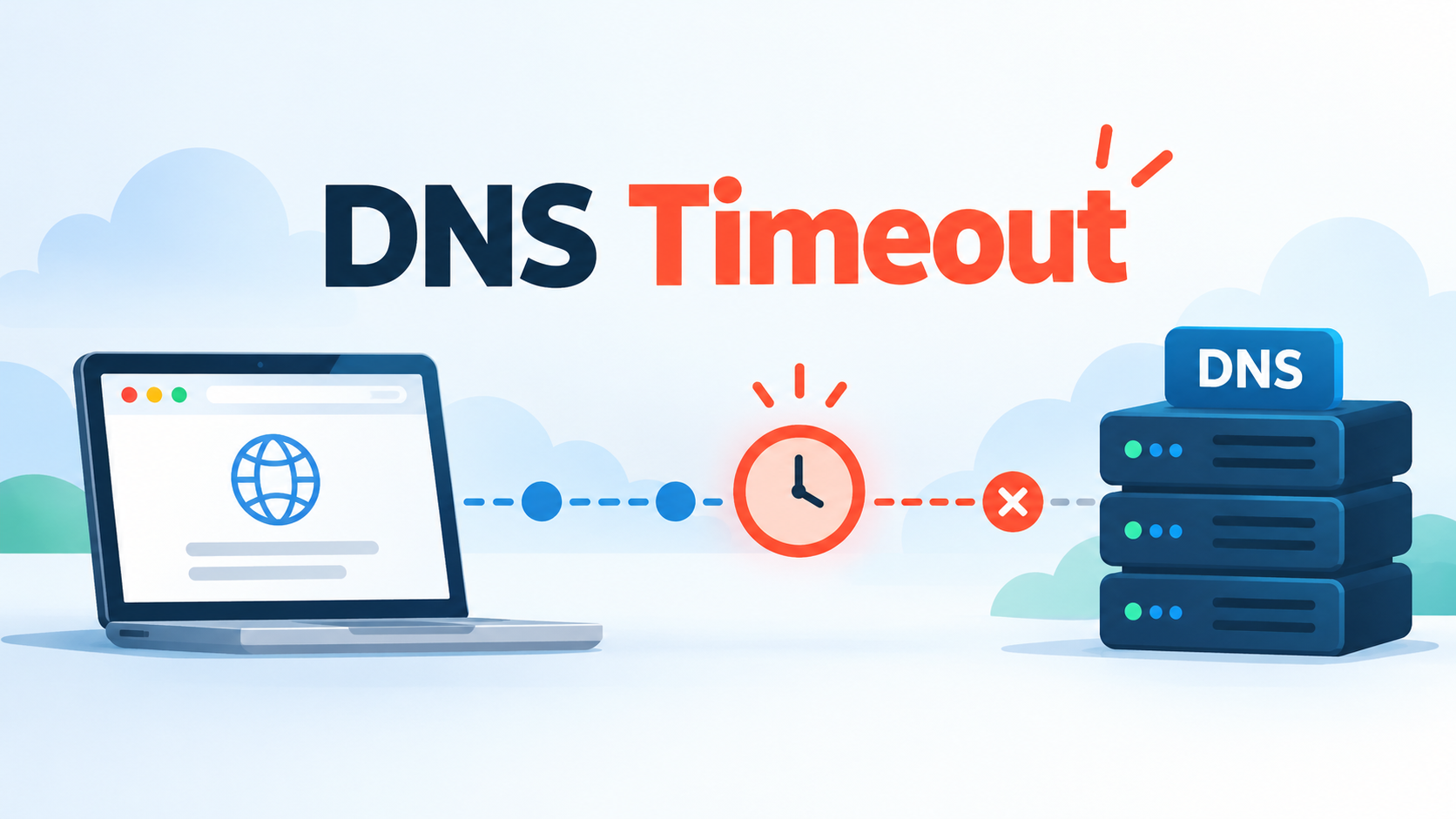
The Dig command is one of the easiest ways to investigate a DNS timeout because it shows whether a DNS server answers your query and how long the response takes.
A DNS timeout happens when your device or a DNS resolver sends a query but does not receive an answer within the expected time. When this happens, a website may load slowly, fail to open, or display a DNS-related error.
The problem can come from your network, DNS resolver, firewall, authoritative nameserver, or even packet loss somewhere between them.
In this guide, we will explain what a DNS timeout means, what causes it, and how to fix it step by step.
What Is a DNS Timeout?
DNS translates domain names such as example.com into IP addresses that computers use to communicate.
When you open a website, your device normally asks a DNS resolver for the domain’s IP address. If the resolver does not already have the answer cached, it may contact other DNS servers until it finds the required record.
Normally, this happens very quickly.
A DNS timeout occurs when a query is sent, but no response arrives within the allowed period.
This is different from DNS errors such as NXDOMAIN or SERVFAIL.
With NXDOMAIN, the DNS server sends a response saying that the requested domain does not exist. With SERVFAIL, the server responds but says it could not complete the request.
With a timeout, you may receive no DNS response at all.
For a broader explanation of these responses, see our guide to common DNS Errors.
What Causes a DNS Timeout?
Several problems can cause a DNS request to time out.
1. The DNS Server Is Unavailable
The DNS resolver you are using may be temporarily offline, overloaded, or experiencing a network problem.
Your Internet service provider usually assigns a DNS resolver automatically. If that resolver stops responding, DNS queries may time out even though your Internet connection itself still works.
2. An Authoritative Nameserver Does Not Respond
Every domain depends on authoritative nameservers that provide its DNS records.
If one or more of these servers become unavailable, resolvers may have trouble retrieving the information they need.
This can result in slow lookups, repeated attempts, or complete timeouts.
3. Network Connectivity Problems
DNS traffic still has to travel across a network.
Packet loss, unstable Wi-Fi, router problems, routing issues, or a poor Internet connection can prevent a DNS query or its response from reaching the destination.
If other online services are also slow or unstable, the problem may not be DNS itself.
4. Firewall or Security Rules Block DNS
Traditional DNS commonly uses port 53.
Firewalls, routers, VPNs, security applications, and network policies can block or interfere with DNS traffic.
DNS normally uses UDP for many queries, but it can also use TCP when necessary. Blocking one of them can cause some DNS requests to fail even when others work.
5. The DNS Server Is Overloaded
A DNS server may receive more queries than it can process quickly.
Traffic spikes, limited server resources, attacks, or infrastructure problems can increase response times.
In severe cases, the server may not answer before the requesting system gives up.
If DNS works but consistently takes too long, read our guide on how to identify and fix slow DNS resolution.
6. Incorrect DNS Configuration
Incorrect nameserver delegation or another DNS configuration problem can send queries toward servers that cannot provide the expected response.
This is why checking the domain’s actual DNS records and authoritative nameservers is an important part of troubleshooting.
You can learn more about how to check DNS records for a domain.
How to Test for a DNS Timeout With Dig
The Dig command gives you a quick way to see whether a DNS server responds.
Run:
dig example.com
Replace example.com with the domain you want to test.
If the lookup succeeds, Dig displays the DNS response along with information such as the query time and the server that answered.
If the DNS server does not respond, you may see a message similar to:
communications error: timed out
or:
no servers could be reached
You can also query a specific DNS resolver.
For example:
dig @8.8.8.8 example.com
This asks Google’s public DNS resolver directly.
Then you could test another resolver:
dig @1.1.1.1 example.com
If one resolver works while another repeatedly times out, the problem may be related to the resolver rather than the domain.
How to Fix a DNS Timeout
Start with simple tests before changing your DNS configuration.
1. Try the Query Again
Some DNS timeouts are temporary.
Run the lookup again or reload the website. A short network interruption or overloaded server may recover without any action.
If the timeout keeps happening, continue troubleshooting.
2. Test Another DNS Resolver
Try querying a different resolver.
If your normal DNS server times out but another resolver responds immediately, you have narrowed down the problem considerably.
The original resolver may be unavailable, overloaded, or experiencing a routing issue.
3. Check Your Internet Connection
Test another website or online service.
If several services have connectivity problems, restart your router or test another network.
You can also switch from Wi-Fi to a wired connection if possible. This helps determine whether an unstable wireless connection is contributing to packet loss.
4. Check the Domain’s Authoritative Nameservers
If only one domain has problems, check its authoritative nameservers.
Confirm that the domain uses the correct NS records and that each nameserver responds to DNS queries.
A missing or unavailable authoritative server can make DNS resolution unreliable.
5. Check Firewall and Security Settings
Make sure firewalls and security software are not blocking legitimate DNS traffic.
This is particularly important if the timeout started after:
- changing firewall rules;
- installing security software;
- connecting to a VPN;
- changing router settings;
- modifying network policies.
You can temporarily test whether a security rule is causing the problem, but do not leave important security protections disabled.
6. Clear the DNS Cache
Your device may have cached DNS information that is no longer useful.
On Windows, open Command Prompt and run:
ipconfig /flushdns
After clearing the cache, try the lookup again.
DNS caching is controlled partly by DNS TTL values.
7. Restart the Router or Device
Restarting your computer or router can clear temporary networking problems and force devices to establish fresh connections.
It is a simple step, but it can resolve issues caused by temporary router, resolver, or local network problems.
DNS Timeout vs. DNS Server Not Responding
These terms are closely related but are not always identical.
A DNS timeout describes what happens when a DNS query does not receive a response within the expected period.
A DNS server not responding message is a broader user-facing error. A timeout can cause that message, but network configuration, resolver problems, firewall rules, and other issues can also be involved.
How to Prevent DNS Timeouts
You cannot prevent every DNS timeout, but reliable infrastructure reduces their frequency.
For domain owners and administrators:
- Use reliable authoritative DNS providers.
- Configure more than one authoritative nameserver.
- Monitor DNS server availability and response time.
- Keep DNS records and nameserver delegation correct.
- Avoid unnecessary firewall restrictions on legitimate DNS traffic.
- Investigate repeated packet loss or unusually slow queries.
- Use appropriate DNS TTL values.
You can also run a DNS check to review a domain’s DNS configuration and identify possible issues.
Conclusion
A DNS timeout means a DNS query was sent, but an answer did not arrive within the expected time.
The cause may be as simple as a temporary network problem or as serious as an unavailable authoritative nameserver.
Start by testing the domain with Dig. Compare different DNS resolvers, check your Internet connection, verify the authoritative nameservers, and review firewall settings.
Most importantly, troubleshoot one part at a time.
Once you identify whether the timeout happens on your device, network, resolver, or authoritative DNS infrastructure, finding the actual cause becomes much easier.

Hi, I’m Bella, a technology enthusiast who enjoys making complex tech topics clear, practical, and easy to understand. Outside of writing, I love trail running, biking, traveling, and photography.